How to Run Python Scripts Using CloudLinux Python App Tool
Overview
This guide will walk you through running Python scripts on your premium hosting account using the CloudLinux Python App tool. This powerful feature allows you to deploy and manage Python applications without complex server configuration, making it perfect for beginners who want to run Python scripts on their hosting account.
What is the CloudLinux Python App Tool?
The CloudLinux Python App tool is a user-friendly interface that simplifies Python application deployment. It handles the technical setup automatically, allowing you to focus on your Python code rather than server configuration.
Benefits of Using Python App Tool
- Easy Setup: No complex server configuration required
- Multiple Python Versions: Choose from various Python versions
- Package Management: Built-in pip support for installing libraries
- Isolated Environment: Each app runs in its own secure environment
- Web Integration: Direct integration with your website domains
Prerequisites
- Premium hosting account with CloudLinux support
- Basic understanding of Python programming
- Python script or application ready to deploy
- Access to cPanel
Accessing Your Hosting Control Panel
Method 1: Client Portal Access
- Visit the client portal: https://ifastnet.com/portal/clientarea.php
- Log in with your hosting account credentials
- Navigate to your hosting services
- Click on the cPanel access button for easy login
Method 2: Direct cPanel Access
- Visit: https://yourdomain.com/cpanel (replace "yourdomain.com" with your actual domain)
- Enter your cPanel username and password
Step-by-Step Guide to Setup Python Application
Step 1: Access the Python App Tool
- Log into your cPanel using one of the methods above
- Scroll down to the "Software" section
- Look for and click on "Python App" or "Setup Python App"
- You'll be taken to the Python application management interface
Step 2: Create a New Python Application
- Click the "Create Application" button
- You'll see a form with several configuration options:
Application Configuration:
- Python Version: Select your preferred Python version (e.g., 3.9, 3.10, 3.11)
- Application Root: Specify the directory where your Python files will be stored
- Application URL: Choose the URL path where your app will be accessible
- Application Startup File: The main Python file that runs your application (usually
app.py or main.py)
Example Configuration:
- Python Version: 3.10
- Application Root:
python_app (creates /public_html/python_app/)
- Application URL:
/myapp (accessible at yoursite.com/myapp)
- Application Startup File:
app.py
- Click "Create" to set up the basic application structure
Step 3: Upload Your Python Scripts
Using cPanel File Manager:
- Go back to cPanel main page
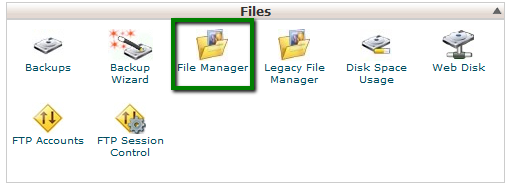
- Click on "File Manager"
- Navigate to the Application Root directory you specified (e.g.,
public_html/python_app/)
- Upload your Python files:
- Click "Upload"
- Select your Python script files
- Upload any additional files your script needs
File Structure Example:
public_html/python_app/
??? app.py (your main script)
??? requirements.txt (if you have dependencies)
??? templates/ (if using web frameworks)
??? static/ (for CSS, JS, images)
Step 4: Install Required Packages
- Return to the Python App interface in cPanel
- Find your created application in the list
- Look for the "Package Installation" or "Requirements" section
Method A: Using requirements.txt
- If you have a
requirements.txt file, the system may automatically detect it
- Click "Install Requirements" to install all listed packages
Method B: Manual Package Installation
- Look for a "Package Management" section
- Enter package names manually (e.g.,
flask, requests, numpy)
- Click "Install" for each package
Method C: Using Terminal (Advanced)
- In cPanel, open "Terminal"
- Navigate to your application directory:
cd ~/public_html/python_app
- Install packages using pip:
pip install package_name
Step 5: Configure Your Python Script
For Web Applications:
Your main Python file should be configured to work with WSGI. Here's a basic example:
# app.py
from flask import Flask
app = Flask(__name__)
@app.route('/')
def hello():
return "Hello, World! My Python app is running!"
@app.route('/test')
def test():
return "This is a test page"
if __name__ == '__main__':
app.run()
For Script-based Applications:
If you're running standalone scripts, ensure they're configured properly for the web environment.
Step 6: Start Your Application
- In the Python App interface, locate your application
- Click the "Start" or "Enable" button
- The status should change to "Running" or "Enabled"
- Your application is now live and accessible
Step 7: Test Your Application
- Visit your application URL in a web browser
- For the example above:
https://yoursite.com/myapp
- Verify that your Python script is executing correctly
- Check for any error messages in the application logs
Managing Your Python Application
Viewing Application Status
- The Python App interface shows whether your application is running
- Green status indicates the application is active
- Red status indicates the application is stopped or has errors
Restarting Applications
- Use the "Restart" button when you make changes to your code
- This reloads your Python script with any updates
- Always restart after uploading new files or installing packages
Stopping Applications
- Click "Stop" to temporarily disable your application
- Useful when making major changes or troubleshooting
Viewing Logs
- Look for "Logs" or "Error Logs" in the Python App interface
- Logs help diagnose issues with your Python scripts
- Check logs if your application isn't working as expected
Common Python Script Examples
Basic Web Application with Flask:
from flask import Flask, render_template
app = Flask(__name__)
@app.route('/')
def home():
return '<h1>Welcome to My Python App</h1>'
@app.route('/data')
def show_data():
data = {'message': 'Hello from Python!', 'version': '1.0'}
return data
if __name__ == '__main__':
app.run()
Data Processing Script:
import json
from datetime import datetime
def process_data():
# Your data processing logic here
result = {
'timestamp': datetime.now().isoformat(),
'status': 'success',
'data': 'Processed successfully'
}
return json.dumps(result)
# For web access, wrap in Flask
from flask import Flask
app = Flask(__name__)
@app.route('/process')
def run_process():
return process_data()
if __name__ == '__main__':
app.run()
Troubleshooting Common Issues
Application Won't Start
- Check Python version compatibility: Ensure your script works with the selected Python version
- Verify file names: Make sure the startup file name matches what you specified
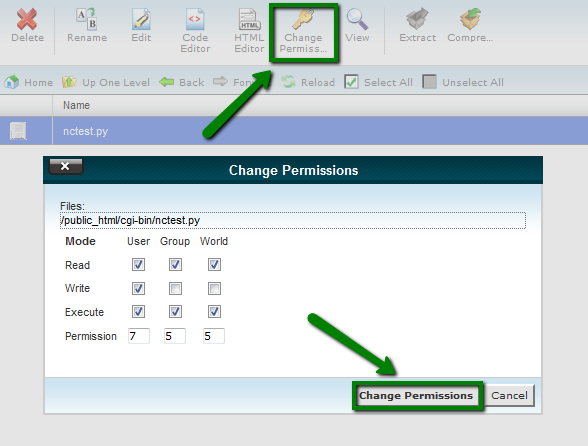
- Review file permissions: Ensure files have proper read permissions
- Check syntax errors: Review your Python code for syntax issues
Import Errors
- Install missing packages: Use the package installation feature
- Check package names: Verify correct spelling and versions
- Review requirements.txt: Ensure all dependencies are listed
Application Not Accessible
- Verify URL configuration: Check that the application URL is set correctly
- Confirm application is running: Ensure the status shows as "Running"
- Check file structure: Verify files are in the correct directory
Performance Issues
- Optimize code: Review your Python script for efficiency
- Limit resource usage: Avoid CPU-intensive operations
- Use caching: Implement caching for frequently accessed data
Best Practices for Python Applications
Code Organization:
- Keep your main application file simple and clean
- Use separate modules for different functions
- Follow Python naming conventions
- Include comments and documentation
Security Considerations:
- Never hardcode passwords or API keys in your scripts
- Use environment variables for sensitive data
- Validate all user inputs
- Keep packages updated to latest versions
Performance Optimization:
- Use efficient algorithms and data structures
- Implement proper error handling
- Cache frequently used data
- Monitor resource usage
Development Tips:
- Test your scripts locally before uploading
- Use version control for your code
- Keep backups of working versions
- Document your application setup and dependencies
Environment Variables and Configuration
Setting Environment Variables:
- In the Python App interface, look for "Environment Variables" section
- Add variables like database URLs, API keys, etc.
- Access them in your code using:
import os
api_key = os.environ.get('API_KEY')
Configuration Files:
- Use configuration files for application settings
- Keep sensitive data out of your main code
- Use JSON or INI files for configuration
Getting Support
If you encounter issues with your Python application or need assistance:
Support Portal Access:
- Visit: https://support.ifastnet.com/login.php
- First-time users: You'll need to register for a support account before creating tickets
- Create a detailed support ticket describing your issue
What to Include in Your Support Ticket:
- Your domain name and application URL
- Python version you're using
- Description of what you're trying to accomplish
- Error messages or logs
- Steps you've already tried
- Your application code (if relevant and not sensitive)
Before Contacting Support:
- Check application logs for error messages
- Verify all files are uploaded correctly
- Ensure packages are installed properly
- Test with a simple "Hello World" script first
Advanced Features
Multiple Python Applications:
- You can create multiple Python applications
- Each can use different Python versions
- Separate applications for different projects
Database Integration:
- Connect to MySQL databases available in your hosting
- Use packages like
pymysql or sqlalchemy
- Store database credentials securely
Scheduled Tasks:
- Combine with cron jobs for automated script execution
- Run data processing scripts on schedule
- Perform maintenance tasks automatically
Summary
The CloudLinux Python App tool makes it easy to run Python scripts on your premium hosting account. By following this guide, you can set up web applications, data processing scripts, and other Python programs without complex server configuration. Remember to test thoroughly, follow best practices for security and performance, and don't hesitate to contact support if you need assistance with your Python applications.